August 3, 2026
5 mins


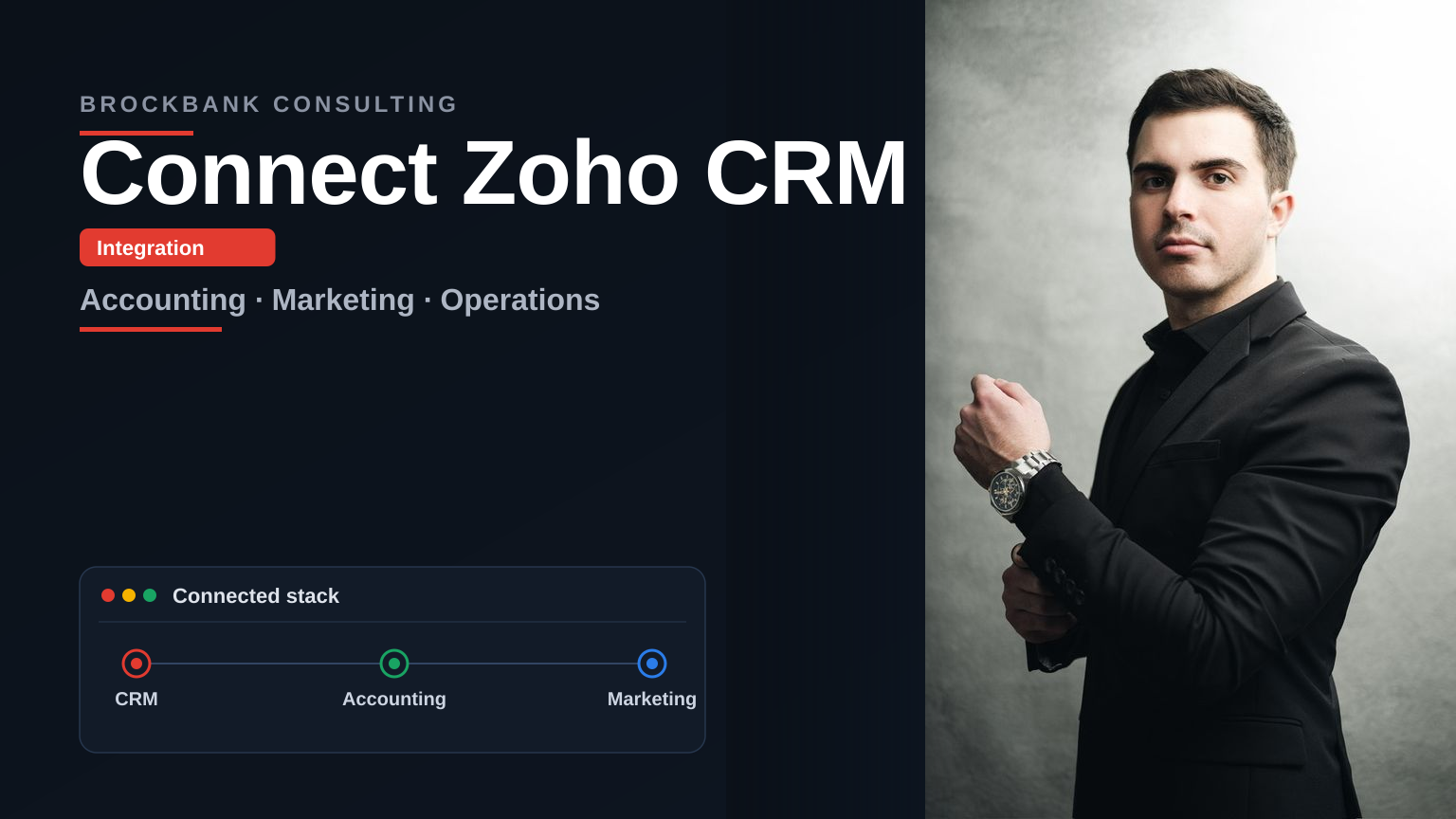


How do I connect Zoho CRM with accounting, marketing, and operations tools?
Most teams lose hours every week manually copying customer details between sales platforms and financial software. That friction creates inconsistent records, missed follow-ups, and delayed invoicing. Connecting your customer relationship management system to the tools that handle billing, campaigns, and daily operations removes the guesswork from your workflow. The result is a single source of truth that keeps your sales, finance, and support teams aligned.
To determine How do I connect Zoho CRM with accounting, marketing, and operations tools?, you should start with native connectors for Zoho Books and Zoho Campaigns, use Zoho Flow or Zapier for QuickBooks and Xero, and map your custom fields before activating any sync. A structured implementation plan ensures data flows correctly without creating duplicate records or breaking existing automations.
When customer data lives in separate applications, sales representatives spend more time chasing information than closing deals. Finance teams struggle to verify payment status or reconcile invoices against closed opportunities. Marketing campaigns lose accuracy when audience lists do not reflect current purchase history or support interactions. Connecting these systems creates a continuous data pipeline that eliminates manual double entry and reduces human error.
In practice, a unified setup gives leadership real-time visibility into pipeline value, revenue recognition, and campaign performance. You can track a lead from initial touchpoint through contract signing, automated invoicing, and ongoing support without switching between platforms. This operational clarity directly improves user adoption and supports sustainable scaling.
A properly configured environment routes new opportunities directly to your billing module. Once a deal reaches the won stage, the system automatically generates an invoice, updates account balances, and triggers a fulfillment notification to your operations dashboard. Marketing automation receives the buyer status change and switches the contact to a post-purchase email sequence. Support teams gain immediate access to purchase history and contract terms when a ticket arrives.
Our implementation approach focuses on clean handoffs between departments. We map field dependencies, establish clear ownership rules, and configure role-based permissions so each team sees only the data required for their daily tasks. This structured method prevents data sprawl and ensures your technology stack supports actual business processes rather than creating additional administrative overhead.
Implementation Insight: Disconnecting sales from finance and marketing creates reporting blind spots. A structured data architecture with defined sync rules and audit trails keeps your revenue cycle transparent and your team focused on execution.
Starting with the built-in connector requires the fewest configuration steps and guarantees the smoothest data synchronization. Navigate to Setup > Integrations > Zoho Marketplace > Zoho Books, then authorize the connection using an administrator account. The platform automatically aligns standard fields such as company name, billing address, primary contact, and transaction status.
After authorization, configure your sync preferences by selecting which modules require bidirectional updates. Most organizations enable two-way syncing for contacts and accounts, while keeping invoices and payments as one-way exports from CRM to Books. Review the field mapping screen to verify that custom fields align correctly, then activate the integration. Test the connection by creating a sample opportunity and verifying that the corresponding invoice appears in your accounting dashboard.
For businesses that maintain QuickBooks Online or Xero as their primary ledger, you should use a middleware platform to bridge the gap. Both Zapier and Zoho Flow provide prebuilt templates that handle authentication, data transformation, and error logging. Select your trigger application (Zoho CRM), define the event (such as Contact Created or Stage Changed), and connect your accounting credentials to the action step.
Map the source fields to the destination fields carefully, paying close attention to currency settings, tax codes, and customer identifiers. Enable the test mode before publishing the workflow to catch mapping mismatches early. Middleware platforms also provide execution logs that alert you to failed syncs, which prevents silent data loss during peak sales periods.
Successful synchronization depends on establishing a clear primary record for each entity. Designate Zoho CRM or your accounting platform as the master source for customer profiles, then configure the integration to update secondary records only. For invoices and payments, route transactions from CRM to your ledger to maintain accurate financial reporting. Inventory levels should typically remain controlled within your operations module or dedicated ecommerce platform, with stock counts pushing to CRM only when sales teams require fulfillment visibility.
We recommend engaging Zoho Processes Services to design these field mappings and establish governance rules. Properly structured workflows turn Zoho into a reliable tool for real progress, reducing manual reconciliation and preventing duplicate customer records from cluttering your database.
Pro Tip: Always pause active automations before running a large data sync. Restart workflows after verification to avoid triggering duplicate follow-ups or unnecessary invoice generation during the migration window.
Connecting your CRM to marketing platforms ensures that sales and marketing efforts are always aligned. For businesses using Zoho Campaigns, the native integration offers a seamless experience. This allows for automatic syncing of leads and contacts, segmenting audiences based on CRM data, and tracking campaign engagement directly within Zoho CRM. When a new lead enters CRM, they can be automatically added to a specific marketing nurture campaign, ensuring timely follow-up.
For popular third-party tools like Mailchimp or ActiveCampaign, integration often requires middleware such as Zoho Flow or Zapier. These connectors enable data synchronization for contacts, list management, and campaign activity. The primary goal is to ensure that customer interactions captured in marketing campaigns are visible to sales, and that sales-generated leads are efficiently passed to marketing for nurturing. This prevents leads from falling through the cracks and ensures consistent customer communication across all touchpoints.
Beyond sales and marketing, integrating Zoho CRM with operational tools streamlines daily tasks and improves internal communication. Connecting CRM to Slack, for example, allows sales teams to receive real-time notifications for important events, such as new lead assignments or deal status changes, directly within their communication channels. This immediate visibility accelerates response times and keeps everyone informed without constant CRM checks.
For customer support, integrating Zoho CRM with Zoho Desk is essential. This connection provides support agents with full customer context, including purchase history and past interactions, directly within their support tickets. This allows for faster, more informed resolutions and a better customer experience. Similarly, linking CRM to project management tools ensures that sales-won deals can be smoothly handed off to project execution teams, providing them with all necessary client details and project scope.
The true power of integration lies in automating critical workflows, particularly the handoff between departments. Imagine a scenario where a qualified lead in Zoho CRM reaches a specific stage. Instead of manual intervention, an automated workflow can trigger the creation of a new contact in your marketing platform, assign them to a nurture sequence, and simultaneously notify the assigned sales rep via Slack. This ensures a swift and coordinated approach to lead engagement.
Similarly, when a customer submits a support request through a form or email that feeds into Zoho Desk, the system should automatically link that ticket to the existing customer record in Zoho CRM. This provides support staff with immediate access to the customer's full history, enabling them to offer personalized and efficient assistance. These automated processes minimize manual data entry, reduce errors, and ensure that every customer interaction is logged and tracked consistently across your business systems.
Pros and Cons of Marketing & Operations Integrations
When connecting Zoho CRM with other applications, you have several primary methods available, each with its own benefits and drawbacks. Native integrations, like the one between Zoho CRM and Zoho Books, are built by Zoho. They typically offer the most straightforward setup, tightest data synchronization, and best performance because they are designed to work together seamlessly. These are often the preferred choice when available.
Middleware platforms, such as Zapier and Zoho Flow, act as intermediaries. They connect applications that don't have direct native integrations. These tools offer flexibility and a vast library of pre-built connectors, making them suitable for a wide range of scenarios. However, they introduce an extra layer in your data flow and may have limitations in terms of real-time syncing or complex data transformations. Custom API development is the most powerful and flexible option, allowing for bespoke integrations tailored to unique business requirements. This method offers complete control but requires significant technical expertise, time, and budget, making it best suited for highly complex or mission-critical integrations not covered by other methods.
Your choice of integration method should align with your business's specific needs and resources. For small businesses or those primarily using Zoho applications, native integrations should be your first consideration. They are cost-effective and simple to implement, providing immediate value. When native options are not available or insufficient, Zoho Flow presents a powerful, integrated solution within the Zoho ecosystem, often providing more advanced features than generic middleware at a competitive price point.
Mid-sized businesses with more complex workflows or a mix of Zoho and third-party applications might find Zapier a good balance of ease of use and extensive connectivity. It's excellent for automating common tasks between many different services. For larger enterprises or businesses with highly specialized requirements, custom API development becomes necessary. This approach allows for precise control over data flow, security, and functionality, ensuring that the integration meets exact operational demands, though it represents a higher investment in development and maintenance.
Regardless of the integration method chosen, a thorough planning phase is critical for success. Begin by clearly defining the data points that need to be synchronized between systems. This involves detailed data mapping, ensuring that fields in one application correspond correctly to fields in another. Pay close attention to data types, formats, and required fields to prevent sync errors.
Next, establish clear roles and permissions for who can access and manage the integrated data. Security is paramount, especially when connecting multiple business-critical systems. Before activating any integration, conduct rigorous testing. Create sample records, trigger common scenarios, and verify that data flows accurately and as expected. Use the testing phase to identify and resolve any mapping issues or automation conflicts. Finally, plan a phased rollout strategy, starting with a small group of users or a limited dataset, to minimize disruption and allow for final adjustments before a full deployment. Our Zoho Processes Services are designed to guide you through each of these steps, ensuring your integrations turn Zoho into a reliable tool for real progress.
Integration Method Comparison
| Method | Description | Best For | Considerations |
|---|---|---|---|
| Native Integration | Direct connection built by Zoho for Zoho apps. | Connecting Zoho apps (e.g., CRM to Books). | Limited to Zoho's offerings; simplest setup. |
| Middleware (Zoho Flow, Zapier) | Third-party platforms connecting disparate apps. | Connecting Zoho with non-Zoho apps; broad compatibility. | Subscription costs; potential for sync delays or complexity. |
| Custom API Development | Bespoke coding for unique integration needs. | Highly specific, complex, or proprietary system integrations. | Highest cost, longest development time, requires technical expertise. |
Integration Planning Checklist
When you connect Zoho CRM with accounting, marketing, and operations tools, you're creating a more powerful, unified system. However, this interconnectedness also means that data security and governance become paramount. For US-based companies, maintaining strict control over sensitive information is not just good practice; it's often a regulatory necessity. Implementing role-based permissions is a fundamental aspect of this. It ensures that users only have access to the data and functionalities relevant to their specific job functions, preventing accidental modifications or unauthorized viewing of critical financial, customer, or operational data.
In practice, a well-defined security framework means that a sales representative might see customer contact details and deal status but not the full financial ledger. Similarly, a finance team member may access invoicing and payment records but not marketing campaign performance metrics. This granular control minimizes the risk of data breaches and ensures compliance with privacy standards. Establishing clear data ownership policies and audit trails for all data interactions provides further layers of security and accountability, turning your connected systems into a reliable platform for real progress.
We recently partnered with a growing SaaS company that was struggling with a fragmented technology stack. Their sales team relied heavily on Zoho CRM, but customer onboarding and billing were managed in separate spreadsheets and a disparate accounting system. Marketing efforts were also siloed, leading to disconnected customer journeys. Manual data entry between these systems consumed approximately 15 hours of their operations team's time each week and resulted in error rates approaching 40% for customer data and invoicing details. This friction directly impacted their ability to scale efficiently.
Our team implemented a comprehensive integration strategy, connecting Zoho CRM with their chosen accounting software and marketing automation platform. This involved meticulous data mapping, establishing automated workflows for lead handoffs, and ensuring financial data flowed seamlessly from closed deals to invoice generation. The outcome was transformative. The operations team reclaimed over 15 hours weekly previously lost to manual data entry. Furthermore, the accuracy of customer records and invoicing improved dramatically, reducing errors by 90%. This allowed their sales team to focus on closing more deals, their finance department to process payments faster, and their marketing team to execute more targeted campaigns, all from a single, connected data source.
Implementation Insight: A successful integration project, like the one described for our SaaS client, hinges on clear objectives, precise data mapping, and a phased rollout. This approach ensures that your technology stack supports operational efficiency and drives tangible business outcomes.
Building a connected ecosystem around Zoho CRM requires more than just connecting two applications; it demands a strategic approach to data flow, user adoption, and ongoing maintenance. The first important step is defining clear business objectives. What specific pain points are you trying to solve? What workflows need automation? Without this clarity, integrations can become overly complex or fail to deliver expected value. Our Zoho Processes Services are built around this principle, turning Zoho into a reliable tool for real progress by aligning technology with your operational strategy.
Secondly, thorough planning around data governance and security is non-negotiable. Understand who needs access to what data and implement role-based permissions accordingly. Map your data fields meticulously, and always test connections rigorously in a sandbox environment before going live. Finally, plan for user adoption and ongoing management. Provide adequate training for your teams, establish clear support channels for integration issues, and schedule regular audits to ensure data integrity and system performance. By focusing on these elements, you can build a truly interconnected system that drives efficiency and supports your business growth.
Yes, Zoho offers Zoho Books, a full accounting application that handles invoicing, expense tracking, and financial reporting. You do not need a separate accounting tool if you use Zoho Books, but if you run QuickBooks or Xero, you can integrate Zoho CRM with them using Zoho Flow or Zapier.
You sync Zoho marketing automation with CRM using the native connector for Zoho Campaigns. This built-in integration aligns contact lists, campaign performance, and lead status automatically, eliminating manual data entry. For third-party marketing platforms, use Zoho Flow or Zapier to map fields and schedule data transfers.
No, CRM is not an accounting software. Zoho CRM manages customer relationships, sales pipelines, and support tickets, but it does not replace a ledger. To handle billing and financial records, connect Zoho CRM to Zoho Books, QuickBooks, or Xero through native integrations or middleware like Zoho Flow.
Yes, Zoho CRM integrates with QuickBooks Online using Zoho Flow or Zapier. These middleware platforms provide prebuilt templates to sync customers, invoices, and payments between the two systems. You need to map fields carefully and enable test mode before activating the workflow to catch mapping mismatches.
No, Zoho CRM cannot replace QuickBooks because they serve different functions. However, Zoho Books is a complete accounting tool that can replace QuickBooks. If you want to keep QuickBooks, integrate it with Zoho CRM so sales and finance teams share accurate customer and transaction data.
To connect Zoho CRM, start with native connectors for Zoho Books and Zoho Campaigns, then use Zoho Flow or Zapier for tools like QuickBooks and Xero. Map your custom fields before activating any sync to prevent duplicate records. This structured approach keeps sales, finance, and operations aligned with a single source of truth.


Book your free consultation to learn how Zoho should work for your business. We will show you the best practice ways to set it up and use it for your industry so you get the most out of Zoho.


Dive deeper into our expert articles.