August 11, 2026
5 mins


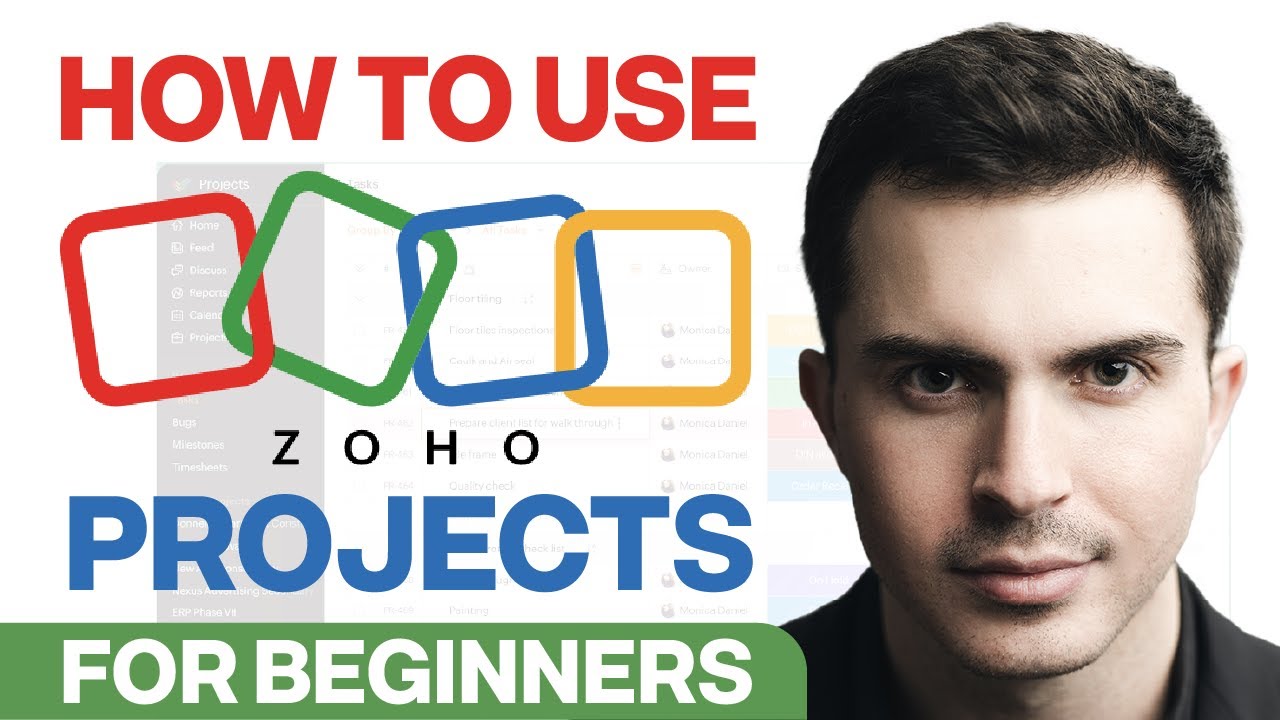

Summary: Zoho Projects is a powerful, structured project management platform that helps teams plan, track, and deliver work using projects, tasks, phases, and reports. This review walks through how Zoho Projects works in practice, which features matter most, and what to consider before adopting it as your core project management software.
Who This Is For:
Key Takeaways:
If you are evaluating project management software, you have no shortage of options. Many project management tools promise to “simplify your work,” but the real test is whether they support your actual processes and help your team manage multiple projects without chaos.
This Zoho Projects review focuses on how the platform behaves in real use: how you structure work, how your team interacts with tasks, and how well it supports leadership visibility into project status, budgets, and time tracking. It also looks at where Zoho Projects shines, where it feels more rigid, and how it fits into the broader Zoho ecosystem.
Brockbank Consulting has implemented Zoho for more than 140 organizations, including teams using Zoho Projects to manage complex projects, recurring client work, and internal initiatives. This perspective informs how we approach the tool: not as a shiny app, but as the backbone of real workflows, reporting, and accountability.
Want a quick one-paragraph summary of what Zoho Projects is?
Zoho Projects is a powerful project management platform that makes it easy to plan projects, track tasks, and manage work all in one place. Learn more about Zoho projects with our full beginner tutorial here.
Before you look at Gantt charts, automation, or reporting tools, it helps to understand how Zoho Projects thinks about work. At its core, Zoho Projects is built on a layered structure:
You will not need every layer on day one. In fact, as we walk you through in our video, one of the most practical ways to approach Zoho Projects is to treat your first project as a simple hierarchy of projects and tasks. That alone allows you to assign work, track task status, and see progress at a glance.
Over time, as your projects become more complex and you begin to manage multiple projects across departments, phases, and task lists become more useful. For example, in a Zoho CRM implementation project, you might define phases like discovery, design, development, and support. Each phase then contains its own task lists and tasks, giving your project manager a way to break a massive initiative into logical chapters.
This structured approach makes Zoho Projects particularly effective for teams that plan work up front and execute against a defined blueprint. It behaves less like a Kanban-only board and more like a living, collaborative project blueprint.
Zoho Projects opens with a homepage that functions as a portfolio dashboard for your work. Instead of dropping you straight into a single project, the home view shows:
This is where project managers and team members get a high-level picture of workload and project health. While the homepage is not endlessly customizable, you can adjust the widgets that appear and the order they appear in to focus on what matters most to you. For example, a project manager may prioritize workload reports and overdue tasks, while individual contributors may prefer to center on “My Tasks” and upcoming deadlines.
Inside a specific project, you see a second, more focused dashboard. That project dashboard shows task progress, time tracking summaries, and key indicators for that one initiative. In many ways, Zoho Projects gives you two levels of visibility: a portfolio view across all projects and a detailed view inside each project.
The interface often feels familiar to users who live in spreadsheets. Task lists can resemble a spreadsheet grid, but with the additional structure and automation capabilities that a true project management app provides. For a video intro to the platform and working in Zoho projects, watch our beginner tutorial.
When you create a new project in Zoho Projects, you have two main options:
If you are managing your first project, starting from scratch is often the best way to learn how the system behaves. You name the project, optionally select a project group, define start and end dates, and decide whether it will be private or public.
A few configuration points are helpful to understand:
Zoho Projects also includes predefined project templates tailored to typical use cases such as marketing campaigns, manufacturing, or construction. These templates give you a faster starting point with standard phases, task lists, and tasks already created. As your team runs the same type of project over and over, you can build your own custom templates so every new project launches with a proven structure.
Task management is where teams either fall in love with a project management tool or abandon it. Zoho Projects lets you create tasks, assign owners, set due dates, define task dependencies, and track status. That is standard. The difference comes from how clearly you define the work and how consistently your team uses the tool.
One practical pattern that works well inside Zoho Projects is naming tasks in a “who will what” format. Instead of vague labels like “Requirements” or “Client Meeting,” you structure tasks as short statements like “Sales team will review requirements with stakeholders.”
This approach creates tasks that read like a story. When teammates scan a task list, they see exactly who is responsible and what needs to happen without opening each task. It also makes it easier to build repeatable SOPs, because the same naming pattern can be reused in project templates.
Zoho Projects supports:
The net result is that Zoho Projects gives you enough flexibility to handle simple task lists and complex task structures without forcing you into a single rigid pattern. The key is to start simple, align the task naming and status conventions with your team, and only add complexity once the foundational habits are in place.
For teams that bill by the hour or want to understand actual effort versus planned effort, Zoho Projects’ time tracking and timesheet features are core strengths.
Inside a task, team members can log hours directly or start a timer that runs while they work. Those time entries roll up into project-level timesheets, where project managers can view:
If you integrate Zoho Projects with Zoho Books or Zoho Invoice, you can convert approved timesheet entries into invoices, track billable versus non-billable hours, and monitor project budget consumption in real time. For organizations that manage client projects or internal chargebacks, this connection between time tracking and project budget is invaluable.
This also helps create stronger accountability. Instead of guessing how long a phase took or relying on anecdotal feedback, you have concrete data on where time is being spent. Over multiple projects, these task reports and time log reports become a feedback loop for better planning.
Zoho Projects includes a generous set of out-of-the-box reporting tools. Once your team is actively managing projects and project tasks in the system, you can use reports to understand workload, variance, and bottlenecks. Common reports include:
For schedule-focused project managers, the Gantt chart view is a core component of any Zoho Projects review. Gantt charts give you a visual timeline of tasks, dependencies, and the critical path. They are especially valuable when managing complex projects with many task dependencies, since they reveal how a slip in one part of the schedule will affect downstream work.
When you are managing multiple projects, the portfolio dashboard lets you see the status across all active work. This gives leadership and PMO teams a way to monitor health, identify projects at risk, and drill down into details when something looks off.
For organizations that need even more advanced reporting, Zoho Projects connects with Zoho Analytics, a full business intelligence tool. That integration allows you to pull data from Zoho Projects, Zoho CRM, Zoho Books, and other Zoho apps (and even some non-Zoho apps) into unified dashboards. For example, you might build a single dashboard that shows project delivery status next to sales pipeline, client revenue, and support volume.
A common failure point with project management apps is scattered communication. If tasks live in one tool, time tracking in another, and conversations in a third, team members spend too much time switching contexts and chasing information.
Zoho Projects takes a more integrated approach. Each project includes collaboration features such as:
These collaboration tools are not meant to replace every internal communications tool your company uses, but they do keep project-related communication close to the work itself. That is especially helpful when new team members join a project and need to review previous decisions.
Zoho Projects also integrates with tools like Zoho Meeting, Microsoft Teams, and other services, so you can connect virtual meetings and conversations back to specific projects and tasks where it makes sense.
Even well-structured projects fall apart if documentation is scattered across email threads and personal folders. Zoho Projects helps centralize project documentation with a built-in documents section. You can upload files directly into the project, attach files to tasks, and manage project-specific documents over the life of the work.
Where Zoho Projects becomes especially powerful is in combination with Zoho WorkDrive, Zoho’s cloud storage solution. Instead of relying on the limited storage space bundled with Zoho Projects, you can integrate WorkDrive and link shared folders to your projects. That effectively creates a unified workspace where tasks, documentation, and files all live in a structured, permission-aware environment.
For teams already using Google Drive or Microsoft Office, Zoho Projects provides integration options that let you connect external storage and document tools, reducing friction as you transition into the Zoho ecosystem.
One of the strongest arguments in favor of Zoho Projects is how well it connects with other Zoho apps. For many organizations, project management does not happen in isolation. It sits between sales, finance, support, and operations.
Some of the most valuable integrations include:
This ecosystem-based approach is where Zoho Projects really differentiates itself from many other project management apps. Instead of cobbling together separate projects, CRM, and finance tools with fragile integrations, you can build an end-to-end system where Zoho Projects lets you link operational work to revenue, costs, and customer relationships.
For organizations already committed to Zoho CRM or Zoho Books, adopting Zoho Projects often feels like a natural next step, because you can use single sign-on and reuse user permissions across multiple apps.
This Zoho Projects review would not be complete without acknowledging the different plan levels. While pricing can change, the free plan generally supports up to three users and a limited number of projects, making it a practical way for small teams to test the tool. The free plan is usually enough to:
As your team grows, you will likely move into a paid plan such as the Premium or Enterprise plan. These unlock advanced features like:
The enterprise plan is usually best suited for organizations with multiple departments, more complex security needs, and a larger set of Zoho Projects users. It is also where the return on investment becomes very clear, since features like portfolio dashboards and enhanced workflow automation can save entire teams significant time.
When comparing Zoho Projects to its competitors and other project management apps, consider not just the per-user cost, but the downstream savings from better time tracking, fewer dropped tasks, more accurate project budget tracking, and tighter integration with your CRM and finance systems.
Every project management tool reflects certain assumptions about how teams work. Zoho Projects is no exception.
Zoho Projects is particularly strong in environments where:
The combination of task management, Gantt charts, time tracking, project templates, and integration with Zoho Books, Zoho CRM, and Zoho Analytics makes Zoho Projects one of the best project management options for small and growing businesses that are serious about process and reporting.
Zoho Projects is not designed to be a lightweight, “just start dragging cards” app. Its structure is closer to classic, list-based project management than purely card-based tools. That is not a weakness so much as a design choice, but it does mean:
In short, Zoho Projects excels as a central, structured project management system. If your organization is ready to capture tasks, track time, and build reliable reporting around your project work, the structure becomes an asset rather than a constraint.
A tool as flexible as Zoho Projects can be implemented in many ways. Left on its own, that flexibility sometimes becomes complexity. The most successful teams are the ones that design a clear way of using the tool and align all users around it.
Brockbank Consulting specializes in doing exactly that. As a certified Zoho implementation partner, our work with Zoho Projects often includes:
Instead of leaving you to experiment with task status lists, permissions, and layouts on your own, we guide you toward a configuration that supports the way you already work while still leveraging the strengths of the platform.
If you are evaluating Zoho Projects and want expert input before committing, you can book a free consultation to explore how it could fit your business.
Zoho Projects is a mature, capable project management platform that fits organizations that value structure, visibility, and integration. It gives you the ability to:
For small and growing businesses, it offers a path to start small on the free plan and scale into a premium plan or enterprise plan as project work grows more complex. For established organizations, it provides the discipline and visibility required to manage larger project portfolios.
If you are looking for a lightweight app where you can jot down tasks without much structure, Zoho Projects may feel like more than you need. But if you are serious about managing projects, assigning tasks clearly, tracking time, and using data to refine your processes, Zoho Projects is absolutely worth a close look.
Reading a Zoho Projects review is a strong first step. The next step is seeing the platform in action and understanding how it can support your specific workflows.
To go deeper into how Zoho Projects works day-to-day, watch the full Zoho Projects beginner tutorial video featuring a complete walk-through of setting up projects, structuring tasks, using Gantt charts, and connecting to other Zoho apps.
If you are ready to explore Zoho Projects for your organization and want tailored guidance, you can also book a free consultation with Brockbank Consulting. Together, we can design a Zoho Projects setup that matches your processes, supports your team, and gives leadership the clarity they need to make confident decisions.


Book your free consultation to learn how Zoho should work for your business. We will show you the best practice ways to set it up and use it for your industry so you get the most out of Zoho.


Dive deeper into our expert articles.